
Account Setup Guide
A complete walkthrough of setting up your Edge Network account, from signup to security configuration. Get your account production-ready in 5 minutes.
What you'll set up:
Start Free
Head to edge.network and click the "Start Free" button to begin the signup process.
- Visit edge.network
- Click "Start Free" in the top navigation
- You'll be taken to the account creation page
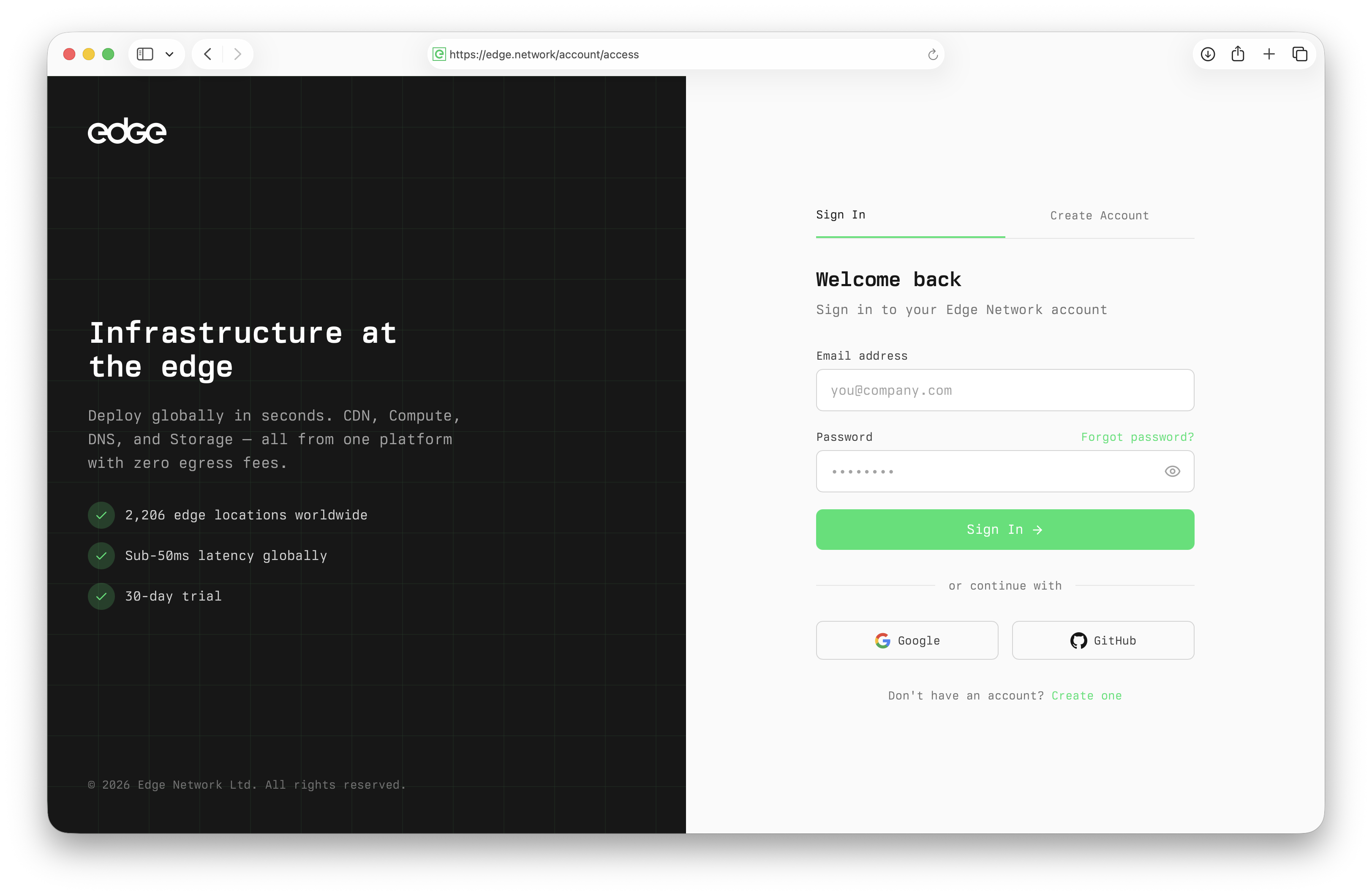
Create Your Account
One short form — or one click with Google or GitHub. By continuing you agree to the terms of service and privacy policy.
- Enter your full name and email address
- Create a secure password (minimum 8 characters)
- Add your company or organisation (optional)
- Click "Create Account" — or sign up with Google or GitHub instead
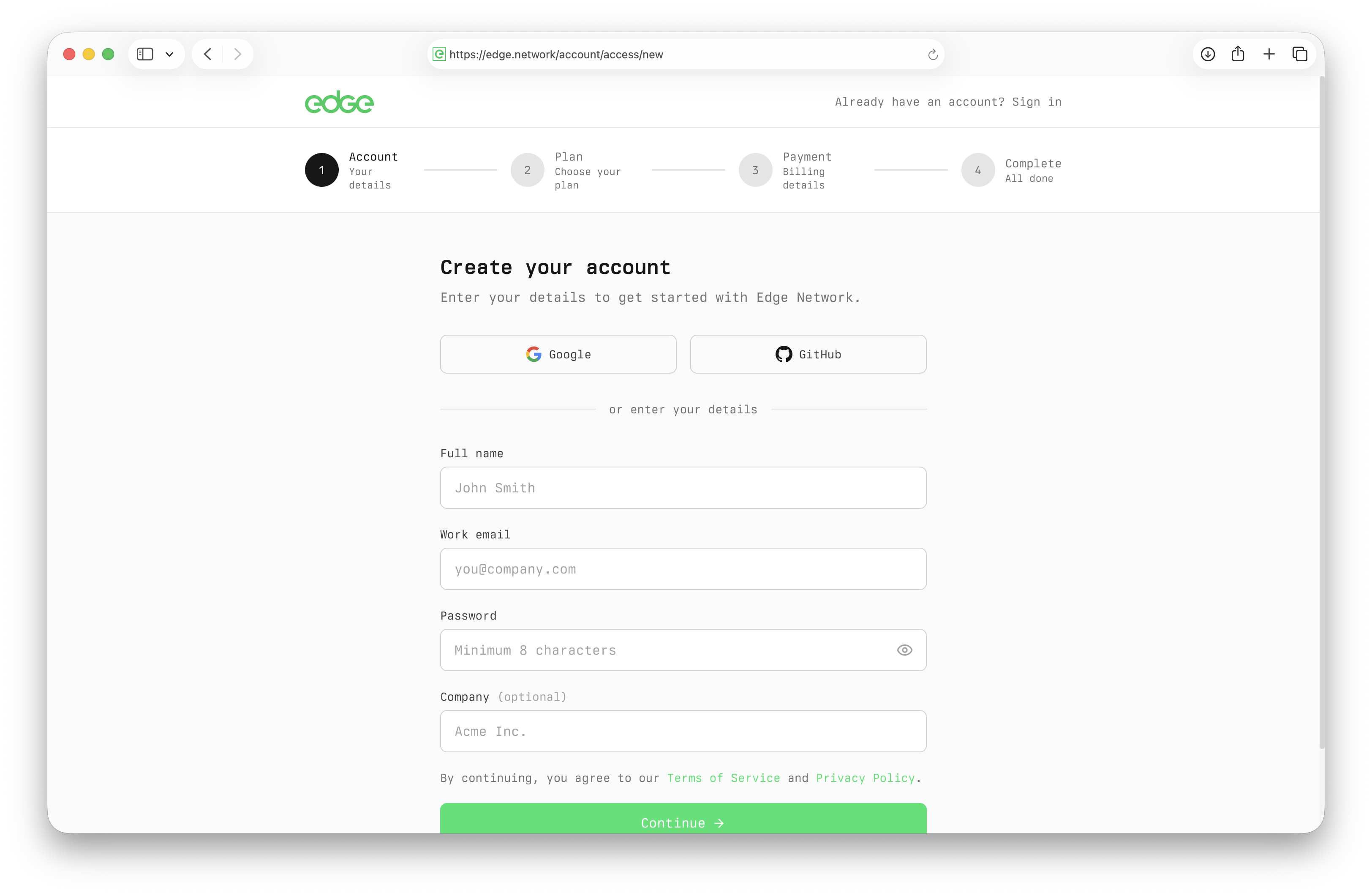
Verify Your Email
We send a verification link the moment you sign up. Verifying your email unlocks resource creation — starting with free DNS zones. No card is needed for this step.
- Check your email inbox (and spam folder)
- Click the verification link in the email
- You'll be redirected back to Edge
- You can now create DNS zones and other resources
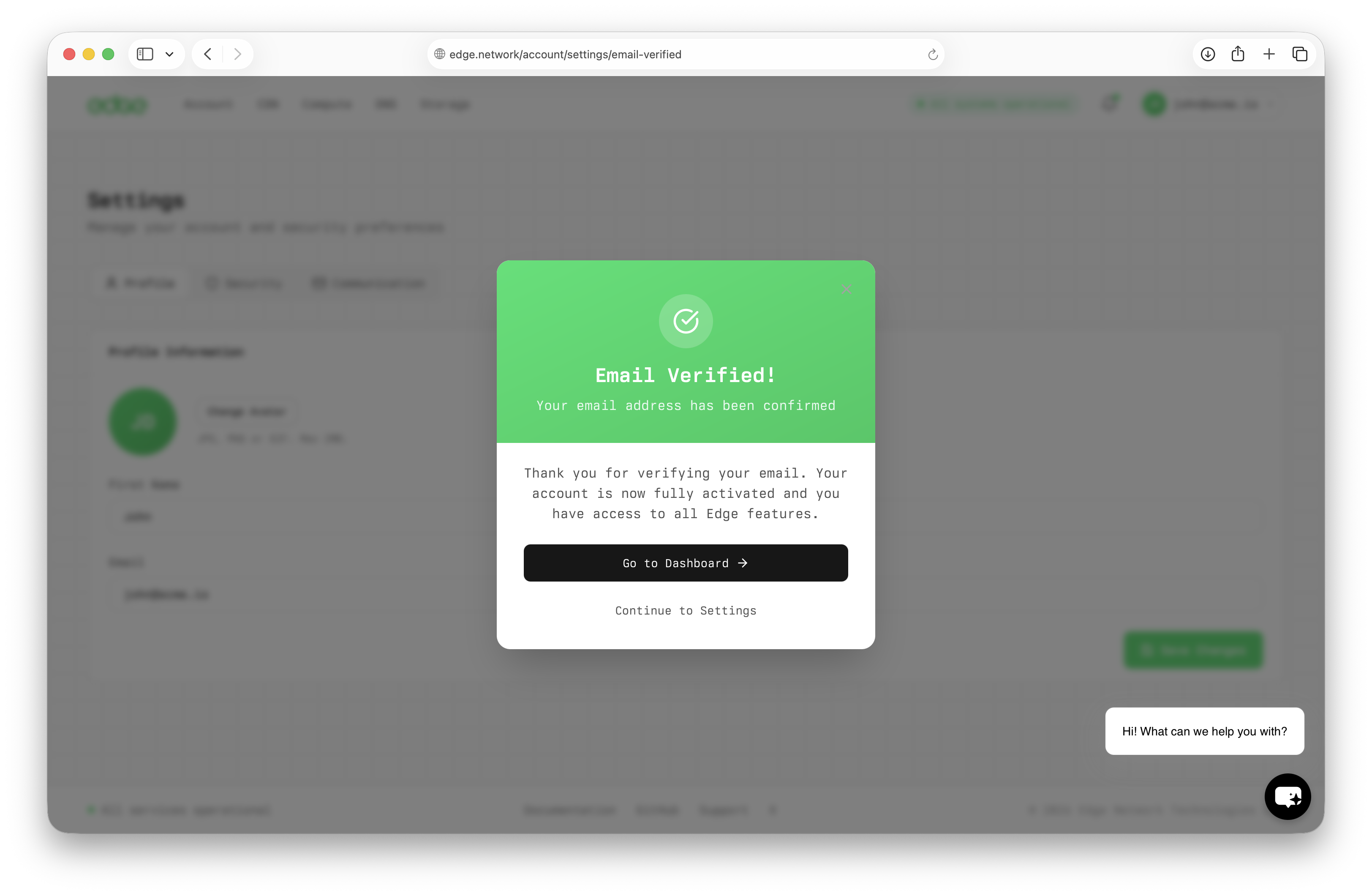
Your Account is Ready
You're all set! Your free Edge account is active and you can start deploying resources immediately. Add a card later (verified, not charged) to unlock the CDN and Storage free tiers and enable pay-as-you-go, or load a prepaid balance to run VMs.
- You'll be taken to your console
- DNS, Shield, and Assist have free tiers with no card at all
- Add a card to unlock the CDN & Storage free tiers and pay-as-you-go
- Check out the Quick Start guide to deploy your first resource
Complete Your Profile
Your name and company come across from signup — polish the rest in Settings → Profile.
- Navigate to Settings → Profile
- Update your name or company if needed
- Add a profile photo
- Note your Customer ID — support may ask for it
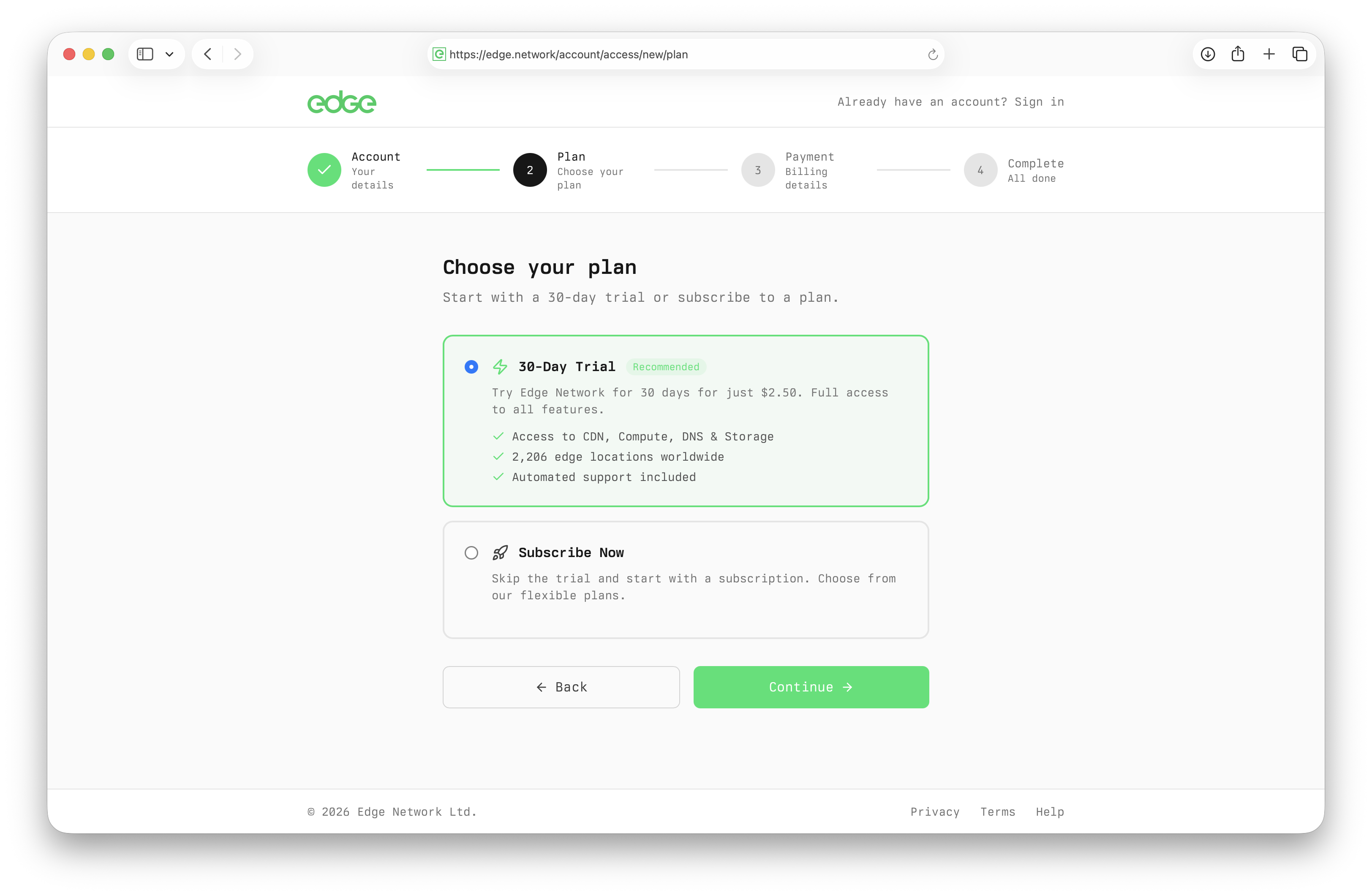
Configure Security
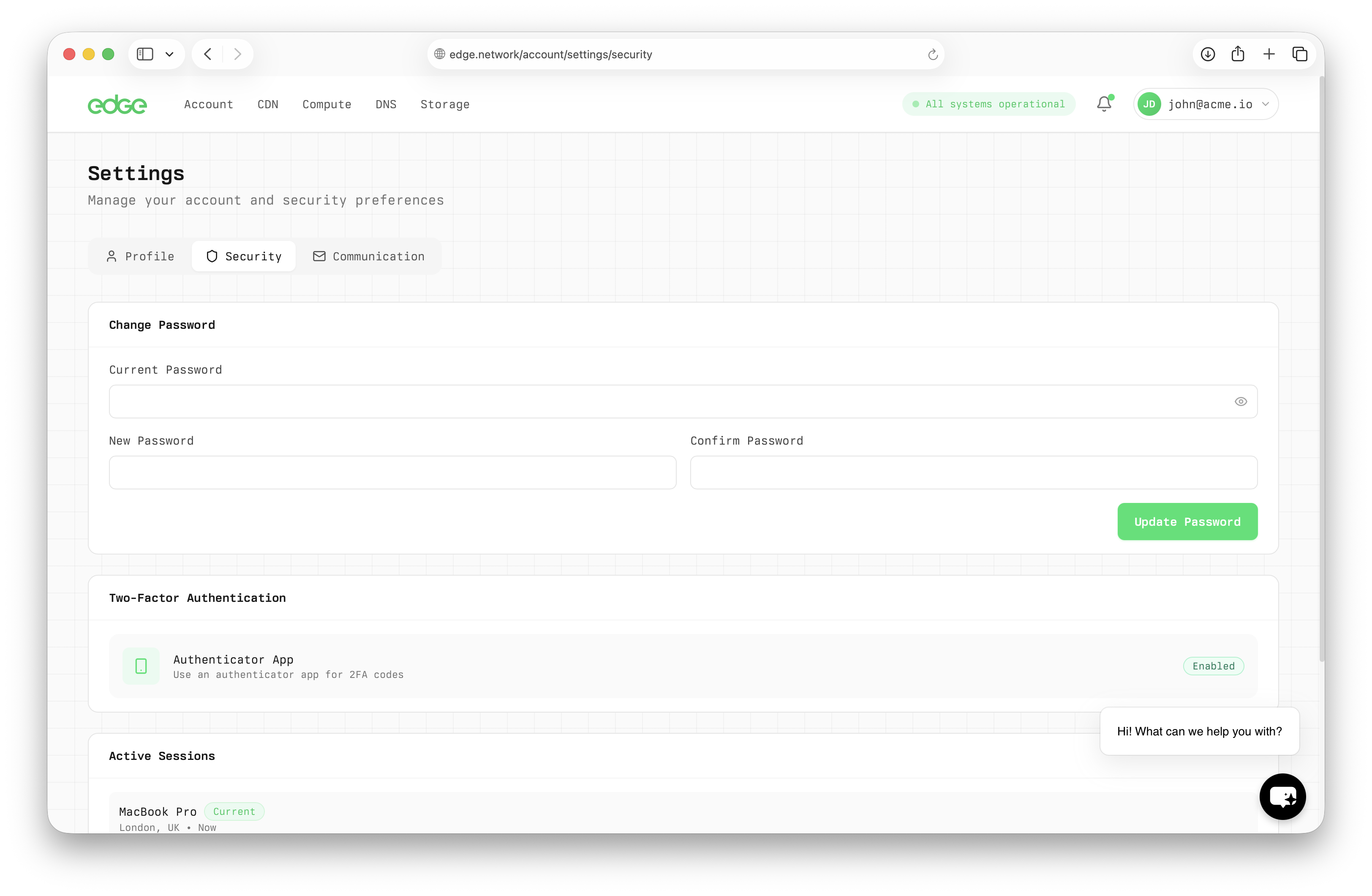
Secure your account with two-factor authentication. We strongly recommend enabling this.
- Navigate to Settings → Security
- Click "Enable 2FA"
- Scan the QR code with your authenticator app
- Enter the verification code to confirm
Set Up Notifications
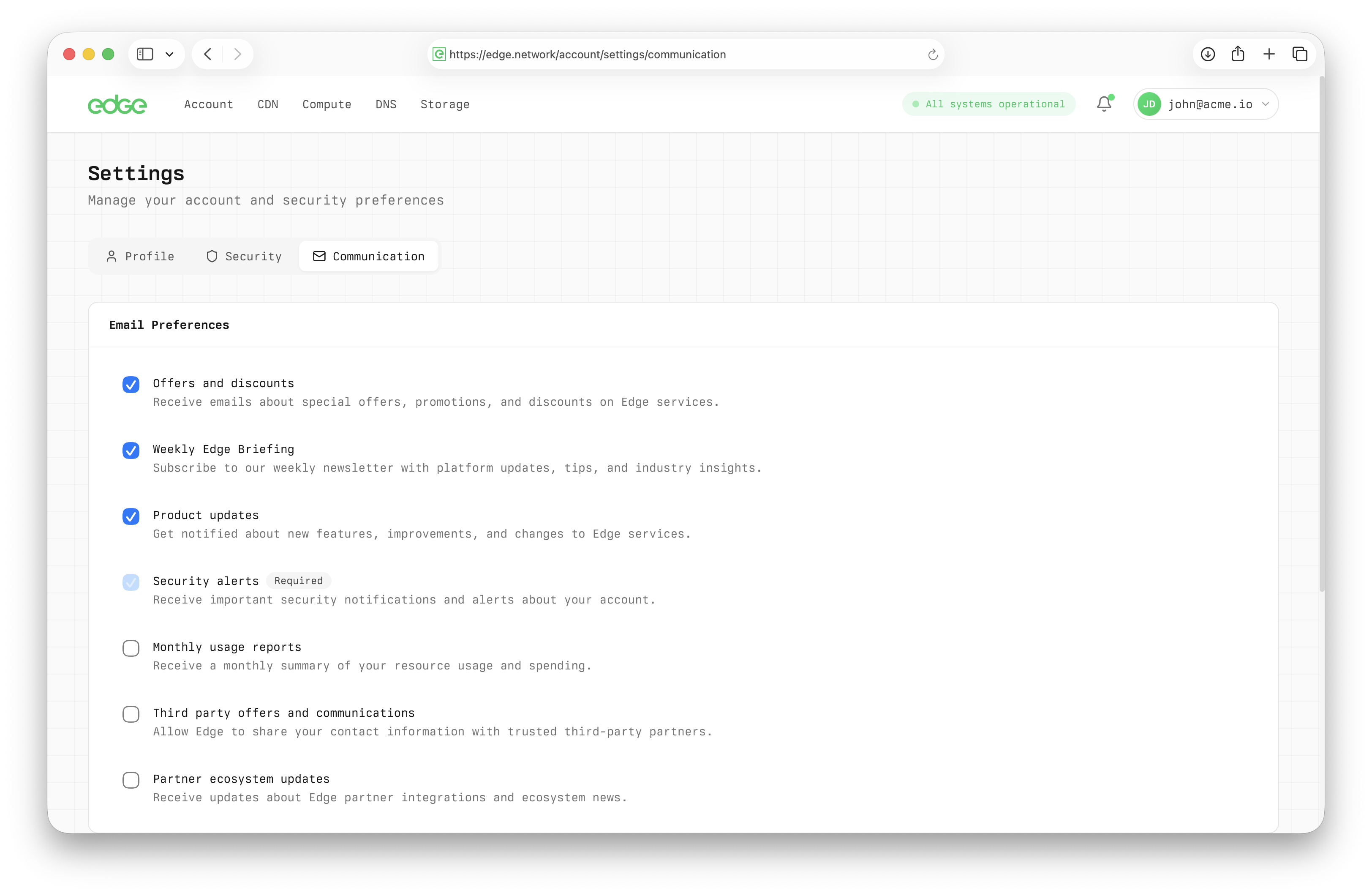
Choose what Edge emails you about, and add a phone number if you want SMS for critical alerts.
- Navigate to Settings → Communication
- Email notifications are on by default
- Toggle notification types — security alerts, product updates, usage reports, offers
- Add a phone number for SMS on critical alerts (optional)
Account ready!
Your Edge Network account is fully configured and secure. You're ready to deploy your first resource. Check out the Quick Start guide to get going.