
Assist
Getting Started
Four steps: create a site, ingest your content, embed the widget, make it yours. Most integrations take under ten minutes.
1. Create a Site
In the console,
go to Assist → Create Site. Give it a name and the hostname it will run
on (e.g. example.com).
You'll receive a sitekey (ea_…).
It's public — it goes straight into your HTML. There is no secret key: the API only
accepts requests for your sitekey from your registered hostname and its subdomains, so
the key is useless anywhere else. localhost
is always allowed, so you can test before deploying.
The hostname matters: it's what the origin check enforces. If your site moves domains, update the hostname in Assist → Settings or the widget will stop answering.
2. Ingest Your Content
Assist answers only from content you give it. Publish a JSON index somewhere on your
domain (e.g. /assist-index.json),
usually as part of your site build:
{
  "hash": "sha256-of-the-content",
  "chunks": [
    {
      "url": "/pricing",
      "title": "Pricing",
      "section": "pricing",
      "text": "One chunk of page content, up to ~1,400 characters,\nsplit on sentence boundaries…"
    }
  ]
}
Set the index URL in Assist → Ingestion and hit Re-ingest now.
From then on Assist re-fetches it hourly and re-indexes whenever the
hash changes —
a site rebuild is all it takes to update what Assist knows.
The full format, chunking guidance, and limits are in Content Ingestion.
3. Add the Widget
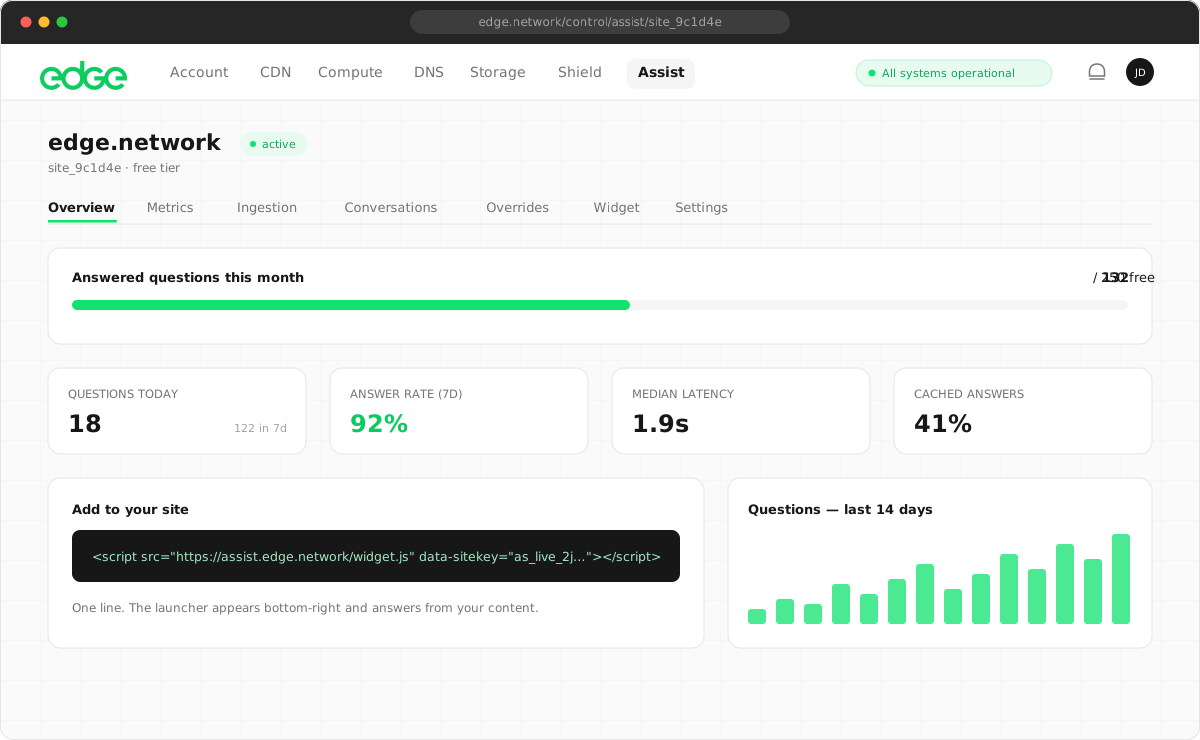
One script tag, anywhere in your HTML (the exact snippet with your sitekey is on the site's Overview page in Control):
<script src="https://assist.edge.network/widget.js"
  data-sitekey="ea_your_sitekey" defer></script>
This renders a floating launcher pill. Clicking it opens the assistant: instant search results as visitors type, AI answers when they ask. Conversations survive page navigations within the session.
Want it inline in a help centre, bound to ⌘K, or with no integration at all (a hosted page you can link to)? All the embedding modes are in Widget & Embedding.
4. Make It Yours
Under Assist → Widget you can set, without touching code:
- Welcome message and placeholder — the first thing visitors read.
- Suggested questions — chips shown before the first question; great for steering visitors to your best answers.
- Launcher prompts — rotating labels on the floating pill ("How can we help?", "Ask about pricing…").
- Accent colour and position — match your brand; bottom-right or bottom-left.
- Handoff email — set this to enable "Need a human?": visitors leave their email and the conversation lands in your inbox.
- Keep exploring links — curated links shown in the expanded view.
Then watch Assist → Overview and Questions: every question, answered or not, is logged — unanswered questions are a to-do list for your content.