
Creating VMs
Creating Virtual Machines
Everything you need to know about deploying new VMs, from region selection to configuration options.
Choosing a Region
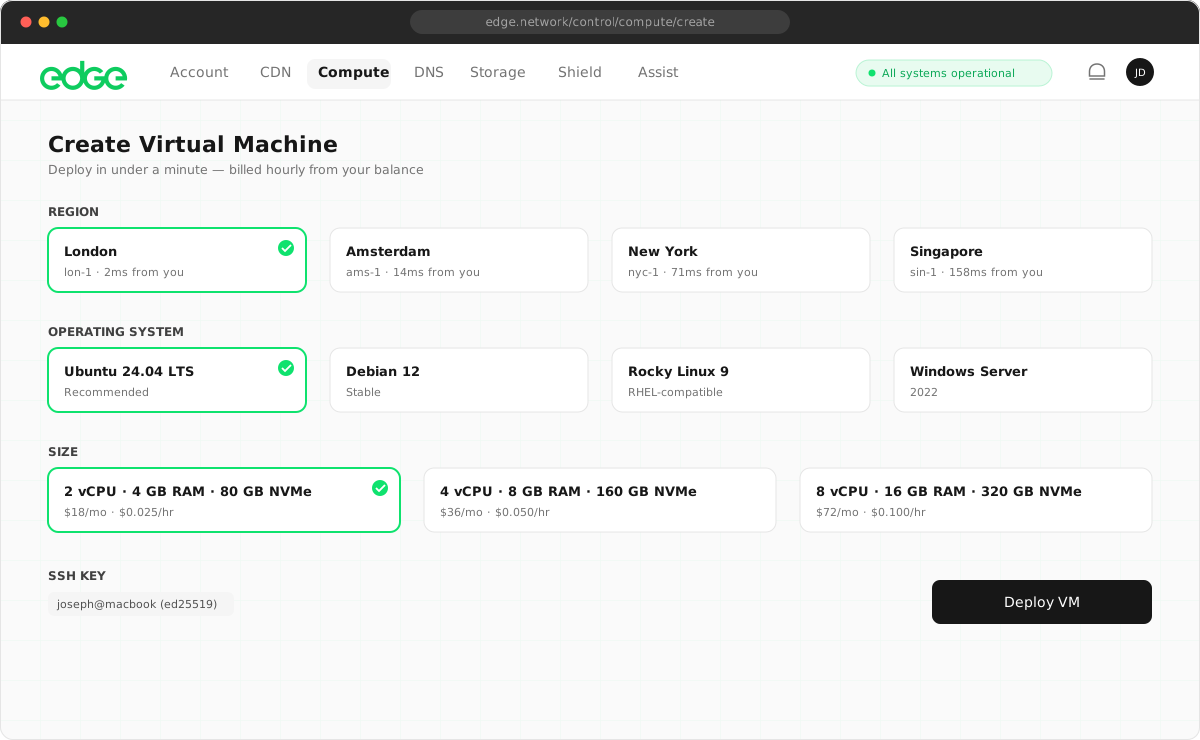
Edge currently offers VMs in two regions (Europe and USA), with many more coming soon. Choose the region closest to your users for the lowest latency.
Europe
London, UK
North America
Miami, FL
Tip: You can deploy VMs across multiple regions for redundancy. Private networks work within a single region, but VMs can communicate across regions via their public IPs.
Operating Systems
Choose from a variety of pre-configured operating system images. All images are optimized for Edge infrastructure and include cloud-init for automated provisioning.
| Operating System | Available Versions |
|---|---|
| Ubuntu | 26.04 LTS, 24.04 LTS, 22.04 LTS |
| Debian | 12, 11, 10 |
| CentOS | Stream 9, Stream 8 |
| Alma Linux | 9, 8 |
| Rocky Linux | 9, 8 |
| Fedora | 39, 38 |
| FreeBSD | 14.0, 13.2 |
| Alpine Linux | 3.19, 3.18 |
Custom ISOs: You can boot VMs from your own installer ISO. To set this up:
- Create a Storage bucket named
isoand upload your.isofile (up to 10 GB) to it. - Contact support to have the ISO reviewed and attached to your account.
- Once attached, "Custom ISO" appears as an operating system option when creating a VM.
The VM boots your installer on a blank disk — complete the installation via the browser Console, configuring networking manually with the network details shown on the VM's Networking tab. Because ISO installs run entirely under your own OS, panel features that operate inside the guest — SSH keys, passwords, hostname changes, setup scripts, and enhanced monitoring — are unavailable; manage these within your operating system instead.
VM Configuration
Configure your VM's resources using the sliders. Each resource is priced individually and billed hourly from your prepaid balance.
vCPUs (1-32)
Virtual CPU cores for your VM. More cores allow better parallel processing and handling of concurrent requests.
1-2 vCPUs: Small applications, development, low-traffic websites
4-8 vCPUs: Production workloads, databases, medium traffic
16-32 vCPUs: High-performance applications, data processing
Memory (1-64 GB)
RAM available to your VM. Important for applications that cache data in memory.
1-2 GB: Minimal applications, static sites
4-8 GB: Most web applications, small databases
16-64 GB: Large databases, caching servers, in-memory processing
NVMe Storage (10 GB - 2 TB)
High-performance NVMe SSD storage. All storage is provisioned on fast NVMe drives.
25-50 GB: Small applications, containers
100-250 GB: Databases, file storage
500 GB - 2 TB: Large datasets, media storage
SSH Key Selection
Select one or more SSH keys to enable access to your VM. You must add SSH keys to your account before creating a VM.
No SSH keys yet?
Add SSH keys in Resources → SSH Keys before creating a VM.
Learn more about SSH keys →Multiple keys: You can select multiple SSH keys. This is useful when multiple team members need access to the same VM.
Advanced Options
Hostname
The hostname identifies your VM in the console and sets the system hostname. Use lowercase letters, numbers, and hyphens.
web-server-1, api-prod, database-eu Tags (Coming Soon)
Organize your VMs with custom tags for easier filtering and management.
User Data (Coming Soon)
Pass cloud-init scripts or configuration to automate VM setup on first boot.