
Security
Firewall
Control network traffic to and from your VMs with firewall rules.
Overview
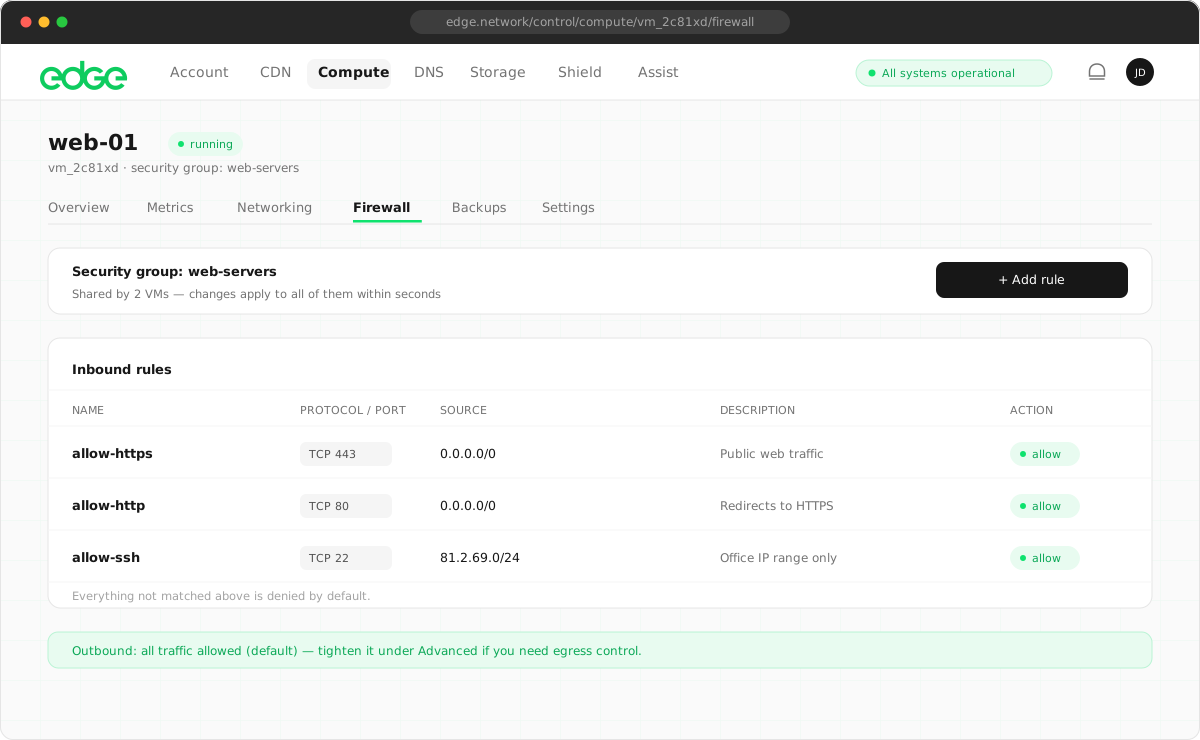
The Edge Firewall controls inbound and outbound traffic to your VMs using security groups. Security groups are collections of rules that define which ports and protocols are allowed. Each VM can have multiple security groups attached.
Security Groups
Reusable sets of firewall rules. Attach them to any VM to instantly apply the same rules across your infrastructure.
Default Deny
When enabled, the firewall blocks all inbound traffic except what's explicitly allowed by attached security groups.
Enabling the Firewall
The Edge Firewall can be enabled or disabled per VM. When disabled, all traffic flows freely. When enabled, only traffic matching your security group rules is allowed through.
- Navigate to your VM in the console
- Click on the Firewall tab
- Use the Enable / Disable button at the top of the page
New VMs: The firewall is enabled by default on newly created VMs. Make sure to attach the allow-ssh security group before enabling, or use the VNC console to access your VM.
Migrated VMs: VMs migrated from a previous infrastructure have the firewall disabled by default. This ensures uninterrupted access. Enable it when you're ready and have confirmed the right security groups are attached.
Security Groups
Security groups are reusable collections of firewall rules. Each account comes with a set of default security groups that cover common use cases.
Default Security Groups
| Name | Ports | Description |
|---|---|---|
| allow-ssh | TCP 22 | SSH access |
| allow-web | TCP 80, 443 | HTTP and HTTPS |
| allow-ping | ICMP | Ping / ICMP echo |
| allow-all-outbound | All | Unrestricted outbound traffic |
Attaching Security Groups
- Navigate to your VM's Firewall tab
- Under Available Security Groups, click Attach next to the group you want
- The rules take effect immediately
Creating Custom Security Groups
- Go to Compute → Firewall in the console
- Click Create Security Group
- Add rules specifying protocol, port range, source CIDR, and action
- Save and attach to your VMs
Common Firewall Rules
Here are example rules for common use cases:
Web Server (HTTP/HTTPS)
| Protocol | Port | Source | Action |
|---|---|---|---|
| TCP | 80 | 0.0.0.0/0 (Any) | Allow |
| TCP | 443 | 0.0.0.0/0 (Any) | Allow |
SSH (Restricted to Your IP)
More secure than allowing SSH from anywhere
| Protocol | Port | Source | Action |
|---|---|---|---|
| TCP | 22 | YOUR_IP/32 | Allow |
Database (Private Network Only)
Allow database connections only from your private network
| Protocol | Port | Source | Action |
|---|---|---|---|
| TCP | 5432 (PostgreSQL) | 10.185.0.0/24 | Allow |
Allow Ping (ICMP)
| Protocol | Type | Source | Action |
|---|---|---|---|
| ICMP | Echo Request | 0.0.0.0/0 (Any) | Allow |
How It Works
When the firewall is enabled, it operates on a default-deny basis:
- All inbound traffic is blocked unless a security group explicitly allows it
- Established connections (return traffic) are always allowed
- ICMP is allowed when the allow-ping group is attached
- Outbound traffic is allowed when allow-all-outbound is attached
- ARP and DHCP traffic is always permitted for network connectivity
Rules from all attached security groups are combined. If any group allows a port, it's open.
Best Practices
Principle of Least Privilege
Only open ports that your application needs. Close everything else.
Restrict SSH Access
Limit SSH to your IP address or a VPN range instead of allowing from anywhere.
Use Private Networks for Internal Services
Databases and other internal services should only be accessible via private networks.
Regularly Review Rules
Remove rules for services you no longer use.
Troubleshooting
Can't connect to my service
Check that you have an inbound rule allowing traffic on the correct port. Make sure the service is actually running on your VM (sudo netstat -tlnp).
Locked out of SSH
Use the VNC console in the console to access your VM and fix the firewall rules. The console works regardless of firewall settings.
Rules not taking effect
Check that the Edge Firewall is enabled on the VM's Firewall tab. When disabled, all traffic flows freely regardless of security groups. Also verify the correct security groups are attached.
Firewall disabled after migration
VMs migrated from a previous infrastructure have the firewall disabled by default. Navigate to the Firewall tab and click Enable to activate it. Make sure allow-ssh is attached first to avoid being locked out.