On-the-fly image processing
Resize, convert and optimise images at the edge without modifying your origin files.
How it works
Image optimisation is built into Edge CDN. Add query parameters to any image URL to transform it on the fly. Transformed images are cached at the edge for instant delivery.
# Original image
https://cdn.yoursite.com/images/hero.jpg

# Resized to 800px wide with WebP format
https://cdn.yoursite.com/images/hero.jpg?width=800&format=webp

# Thumbnail with quality adjustment
https://cdn.yoursite.com/images/hero.jpg?width=200&height=200&fit=cover&quality=80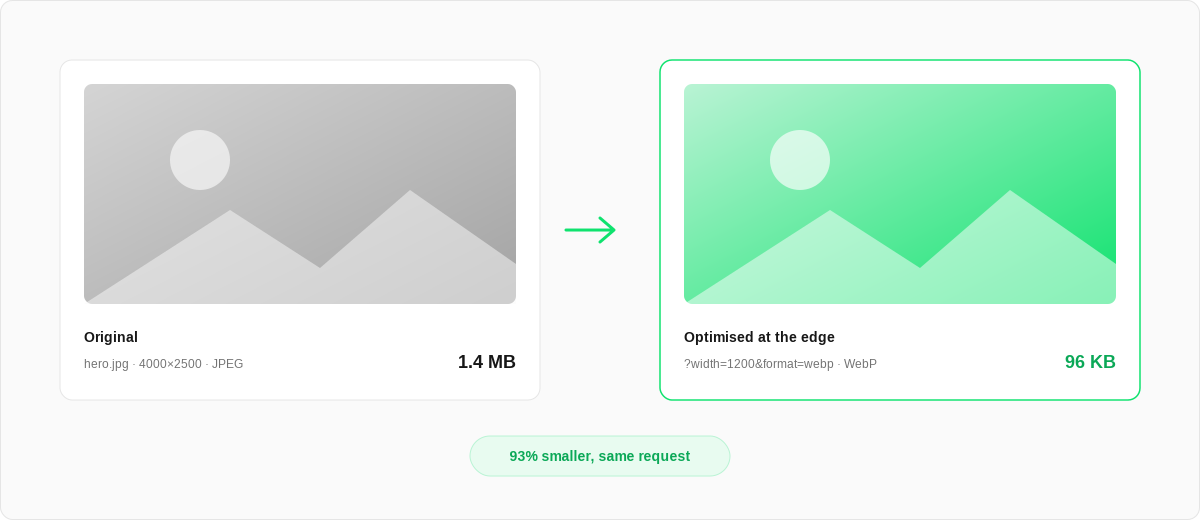
Transformation parameters
Resize
| Parameter | Description | Example |
|---|---|---|
width | Target width in pixels | width=800 |
height | Target height in pixels | height=600 |
fit | How to fit: cover, contain, fill, inside, outside | fit=cover |
Format conversion
| Parameter | Description | Example |
|---|---|---|
format | Output format: auto, webp, avif, jpeg, png | format=webp |
Available formats
auto: automatically selects the best format based on browser support (AVIF → WebP → JPEG)avif: best compression, smallest files, supported by modern browserswebp: great compression with wide browser supportjpeg: universal compatibility, good for photospng: lossless, supports transparency
Tip
Use format=auto. The auto format inspects the browser's Accept header and serves AVIF to browsers that support it, WebP to those that don't, and JPEG as a fallback. This ensures the smallest possible file size for each visitor.
Quality
| Parameter | Description | Example |
|---|---|---|
quality | Compression quality 1–100 (default: 80) | quality=75 |
Effects
| Parameter | Description | Example |
|---|---|---|
blur | Gaussian blur amount (0.3–1000) | blur=10 |
sharpen | Sharpen the image | sharpen=true |
grayscale | Convert to greyscale | grayscale=true |
Low-quality image placeholders (LQIP)
Generate tiny placeholder images for lazy loading. Show a blurred preview while the full image loads.
| Parameter | Description | Example |
|---|---|---|
lqip=1 | Returns a tiny (~20px wide) blurred image | ?lqip=1 |
lqip=base64 | Returns a base64-encoded data URL (embed directly in HTML) | ?lqip=base64 |
lqip=blurhash | Returns a BlurHash string (4–5 bytes, decode client-side) | ?lqip=blurhash |
# Tiny blurred placeholder (raw image)
https://cdn.yoursite.com/hero.jpg?lqip=1

# Base64 data URL (embed in src attribute)
https://cdn.yoursite.com/hero.jpg?lqip=base64

# BlurHash (returns JSON with hash, width, height)
https://cdn.yoursite.com/hero.jpg?lqip=blurhash
# → {"blurhash": "LEHV6nWB2yk8pyo0adR*.7kCMdnj", "width": 4, "height": 3}
Animated GIF support
Animated GIFs are processed with ImageMagick to preserve all animation frames. You can resize and convert animated GIFs without losing the animation.
| Operation | Supported | Notes |
|---|---|---|
| Resize | ✓ | All frames are resized, animation preserved |
| Convert to WebP | ✓ | Animated WebP output, often smaller than GIF |
| Convert to PNG | ✓ | Animated PNG (APNG) output |
| Quality adjustment | N/A | GIF is lossless, so the quality parameter is ignored for GIF output |
# Resize animated GIF to 400px wide
https://cdn.yoursite.com/animation.gif?width=400

# Convert animated GIF to WebP (smaller file, keeps animation)
https://cdn.yoursite.com/animation.gif?width=400&format=webp
Common use cases
Responsive images
Generate multiple sizes for srcset:
<img
  src="https://cdn.yoursite.com/hero.jpg?width=1200&format=webp"
  srcset="
    https://cdn.yoursite.com/hero.jpg?width=400&format=webp 400w,
    https://cdn.yoursite.com/hero.jpg?width=800&format=webp 800w,
    https://cdn.yoursite.com/hero.jpg?width=1200&format=webp 1200w
  "
  sizes="(max-width: 600px) 400px, (max-width: 1000px) 800px, 1200px"
/>
Thumbnail grid
Create consistent thumbnails:
https://cdn.yoursite.com/product-1.jpg?width=300&height=300&fit=cover&format=webpBlur placeholder (LQIP)
Generate a tiny blurred placeholder for lazy loading:
https://cdn.yoursite.com/hero.jpg?width=20&blur=10&quality=30Supported formats
| Format | Support |
|---|---|
| JPEG | Input and output |
| PNG | Input and output |
| WebP | Input and output |
| AVIF | Input and output |
| GIF | Input only |
| SVG | Passed through |
Default settings
Configure default image optimisation settings in the Configuration tab:
- Default format: set to
autoto serve AVIF/WebP/JPEG based on browser support - Default quality: set a global quality (1–100) applied when no URL parameter is specified
- Path rules: override quality/format for specific paths, such as thumbnails
Performance
Image transformations happen at the edge and are cached after the first request:
- <100ms: first transformation
- <10ms: cached delivery
- ~70%: average size reduction
Next steps
Something unclear or out of date? Tell us, or read this page as Markdown.